This post is part of our "How Knock Uses Knock" series, where we share how we use our own customer engagement infrastructure to solve real messaging challenges.
When new users sign up for Knock, they need different guidance based on how they're using our product. A developer who immediately starts sending notifications has different needs than a product manager exploring our in-app messaging features or a founder who signed up and hasn’t logged back in.
Still, most onboarding emails treat every user the same, sending the same sequence regardless of what users actually do in your product. This can lead to lower activation, higher churn, and missed opportunities to guide users toward meaningful product value.
The obvious solution is to send different emails based on each user’s roles and behaviors, but that’s easier said than done. Implementing this at scale requires sophisticated sending logic and access to product usage data in your messaging system.
Luckily, this is exactly the kind of complex notification workflow that Knock was built to handle.
Instead of static email drips, we use branching logic to figure out which users have accomplished (or haven’t accomplished) certain tasks in Knock after signing up, and use conditions to dynamically send emails based on that information.
Here's how we built it and what we learned along the way.
Step 1: Determine key onboarding moments
First, before building anything in Knock, we identified five key product actions that a user needs to take to be considered onboarded, ordered by the most common order they’re completed in:
- Has connected at least one external messaging channel.
- Has created at least one messaging workflow.
- Has sent at least one production message.
- Has invited as least one teammate to the account.
- Has used other Knock products, such as Broadcasts or Guides.
If a user has already completed all five of these product actions by the time we start the onboarding series, we won’t send them a single email, as they have clearly onboarded themselves successfully.
However, if any of these actions aren’t completed, it reveals a need for some onboarding assistance to increase the likelihood of them becoming successful Knock customers.
Step 2: Accessing product data in Knock
To trigger messaging based on these product actions, we need to add conditions that reference certain product usage data.
Like other SaaS companies, we store our product usage data in a data warehouse and sync certain fields to tenant (aka account) profiles in Knock using reverse ETL. This way, product usage data is handled and stored like the rest of our customer data, so we can access it right in Knock and reference it in messaging workflows.
To target email communications based on the product actions above, we had to sync the following data:
tenant.channel_count. Number field, tells us how many channels an account has connected.tenant.workflow_count. Number field, tells us how many workflows an account has created.tenant.has_sent_production_message. Boolean field, tells us if an account has sent an actual message via Knock yet.tenant.seat_count. Number field, tells us how many users are on the account.tenant.broadcast_count. Number field, tells us how many broadcasts an account has created.tenant.guide_count. Number field, tells us how many guides an account has created.
Step 3: Building the workflow content + logic
With product usage data now available in Knock, we could finally build our onboarding email workflow with the proper logic using Knock's workflow engine.
Trigger + delay steps
First, we had to determine when to trigger the workflow. We already record an event when a new account gets created, so we used the workflow key to set up an API call with a ‘once per recipient’ frequency cap. Once the event occurs, the API call is triggered and the user gets added to the Knock workflow.
Since the ‘new account created’ event happens immediately, we added a 48-hour Delay step right after the Trigger step to ensure we give the user some time to onboard with the product themselves.

Workflow trigger set to fire from API call
Email 1: Check channel count
Once the delay has ended, we can start sending onboarding emails. But before we send the first one, which urges the user to set up their first external integration, we need to check if they’ve already set up any integrations. (This email would be annoying, rather than helpful, if they’ve already connected multiple third-party messaging services.)
To confirm this, we added a Branch step. This workflow function uses Knock's branching logic to route users into the right branch based on a true/false condition.
Here, we set a condition to check if a user has connected any third-party messaging channels yet. (Since we automatically provision a free Knock-branded email and in-app channel for every new account, we check if tenant.channel_count <= 3 to determine if any additional channels have been connected.)
If they haven’t connected additional channels yet, they will be routed to a branch with an Email step. After the email is sent, it’s followed by another 48-hour Delay step.
If they have connected additional channels, they’ll be routed to a branch that skips the Email and Delay steps altogether and moves them right to the next Branch.
For the Email step, we specify Postmark as our email service, and then adjust the Send Windows to only send the email between 9-4pm on weekdays, ensuring these messages are reaching users at effective times, no matter when they created their account.
The email’s content contains a relevant message about the benefits of setting up additional channels in Knock. It uses Liquid variables to personalize each user’s content based on their actual tenant.channel_count.
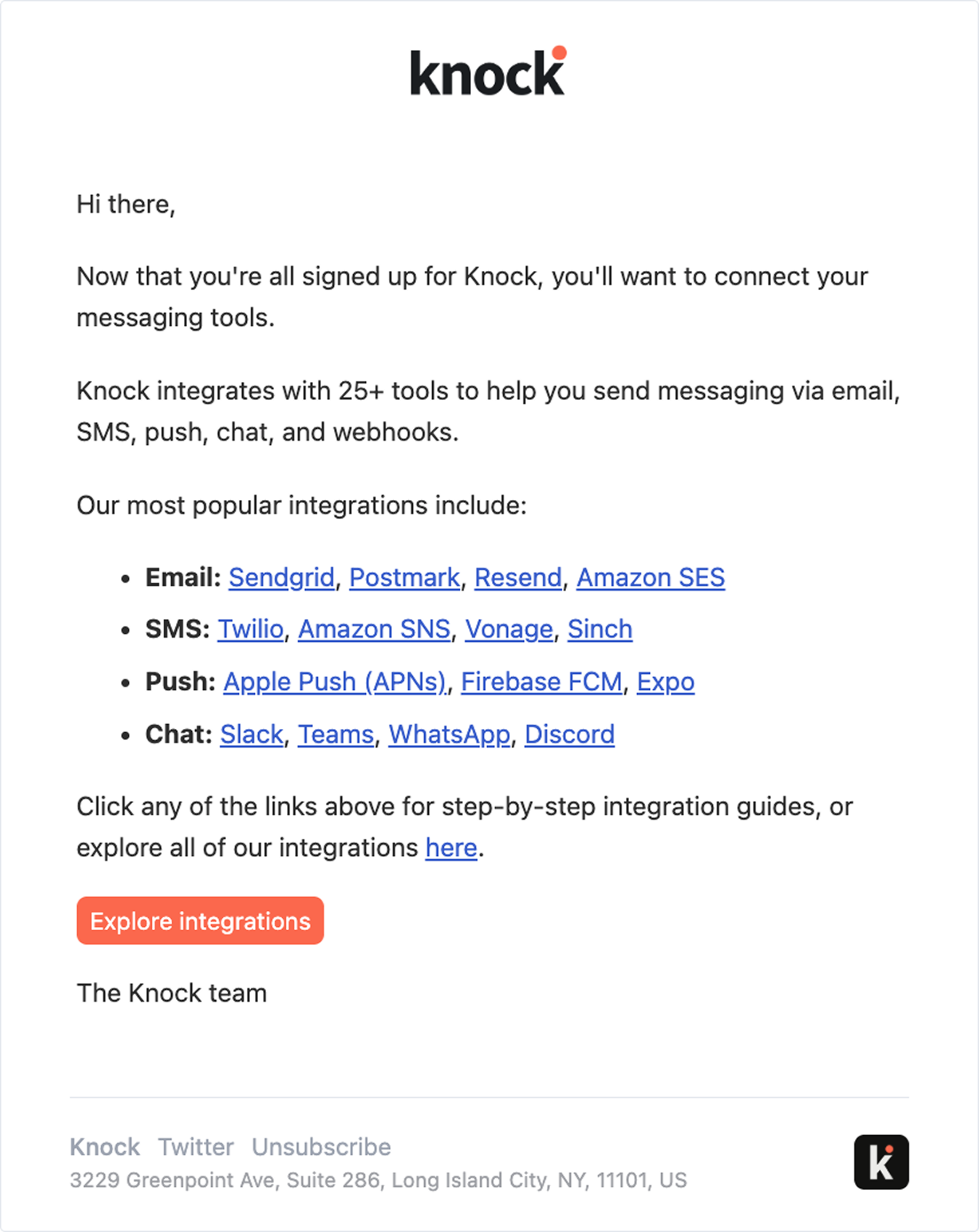
Email 2: Check workflow count
In a similar fashion, after the first Email branch is complete, we’ll add another Branch step to check if a user has created any Knock workflows yet.
We check if tenant.workflow_count is equal to 0, which tells us whether a user should be routed to a branch with an Email step (followed by another 48-hour Delay step), or if they have already created a workflow and should skip the Email and Delay steps altogether.
The email content encourages users to create their first workflows, and we can feel confident that they have not created one yet.
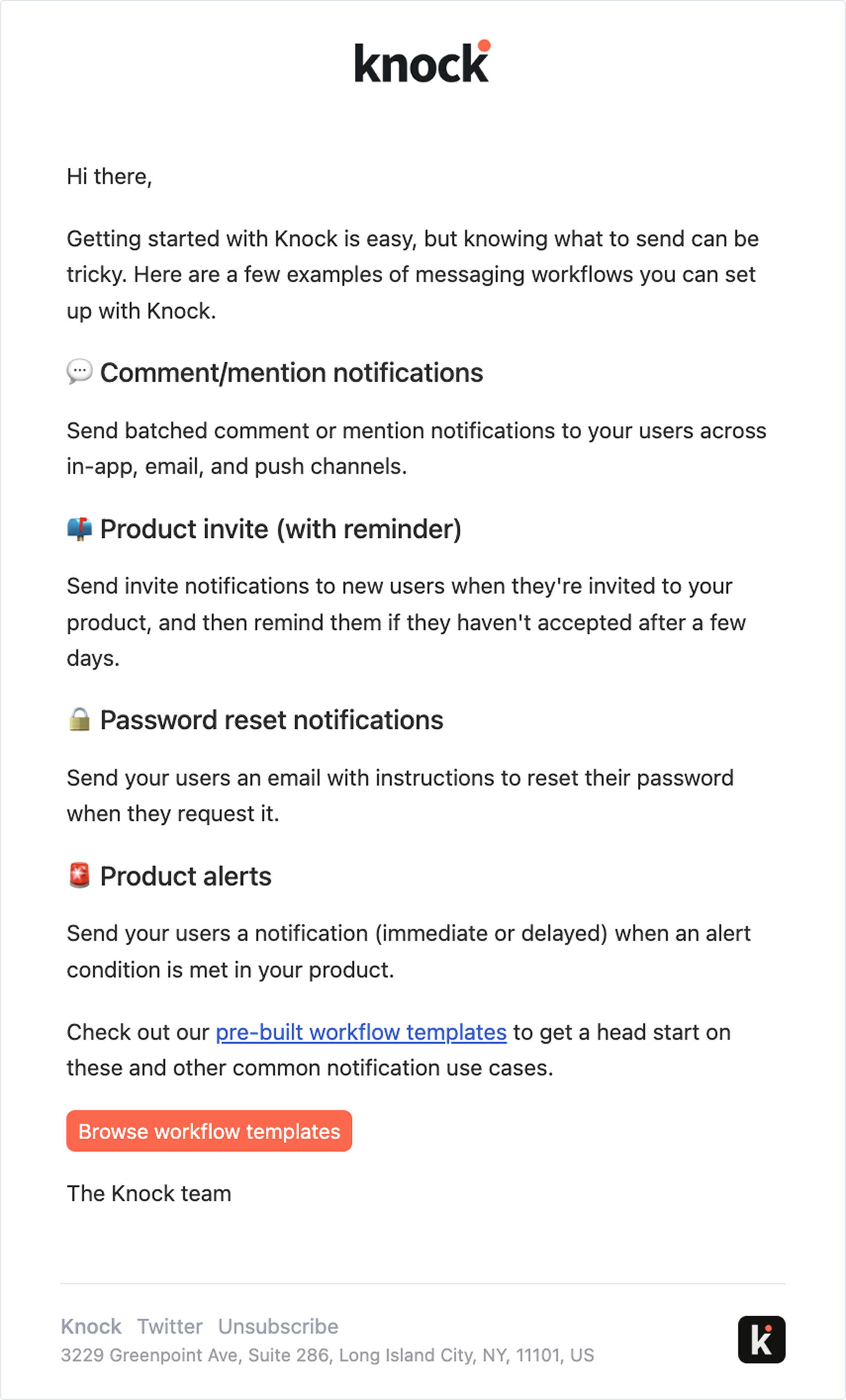
Email 3: Check production message count
You’re starting to get the idea. Next, we add another Branch step, this time checking whether a user has sent a production message yet.
If they haven’t, they get an email with helpful instructions to trigger their workflow(s). If they have already sent a message, they skip to the next branch.
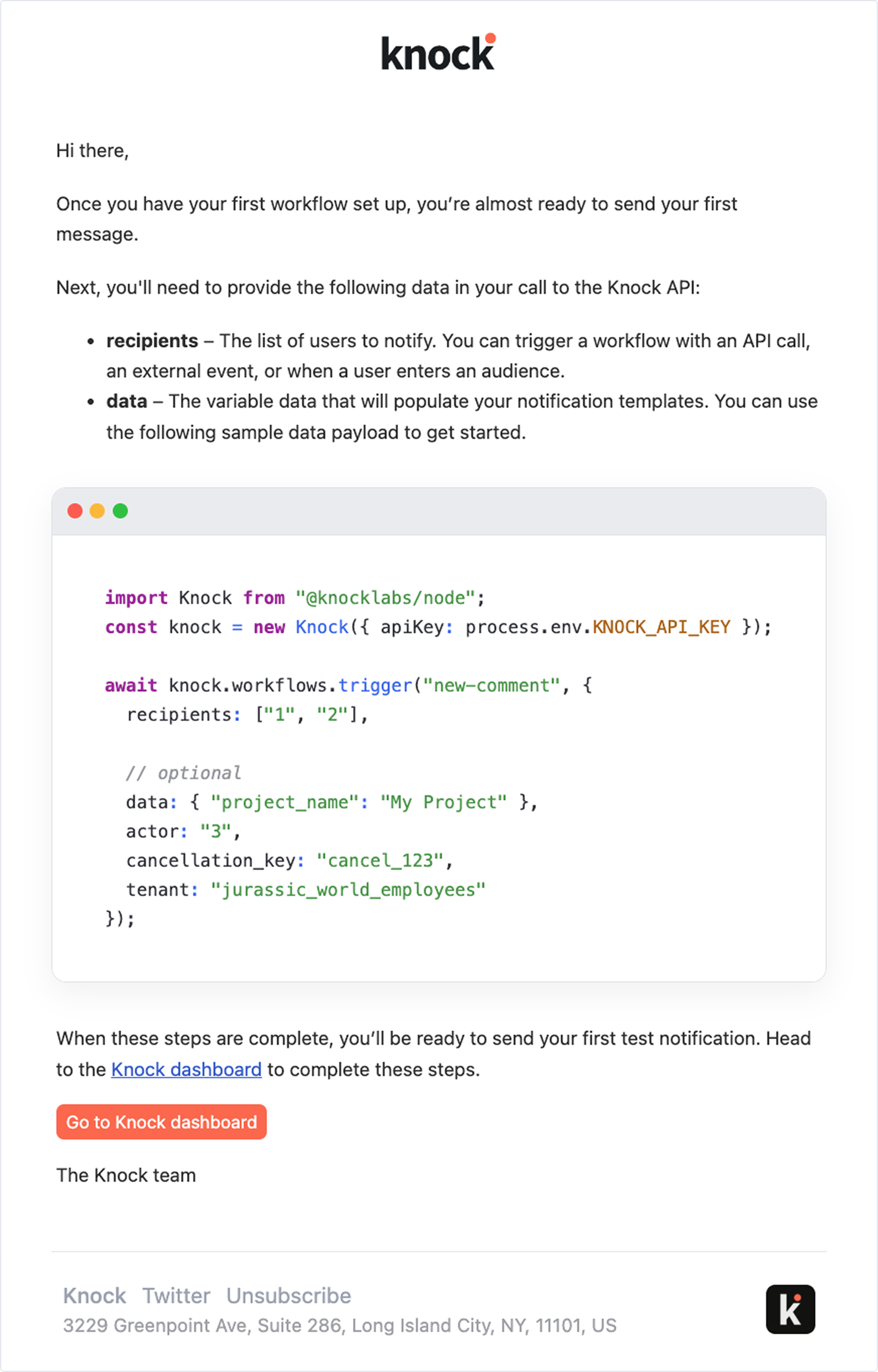
Email 4: Check user count
As a business focused on the B2B SaaS space, another key indicator of onboarding success is whether a user invites other members from their team to their account. Its collaboration features unlock part of its value and makes the product stickier. Plus, for our purposes as a company, accounts with more than one user have a higher chance of growing usage and revenue.
We’ll add another Branch step to check how many seats are in the account. If tenant.seat_count is greater than 1, then the first user figured out how to invite their colleagues and we’ll skip sending them a message about it.
Otherwise, they’ll receive this email:
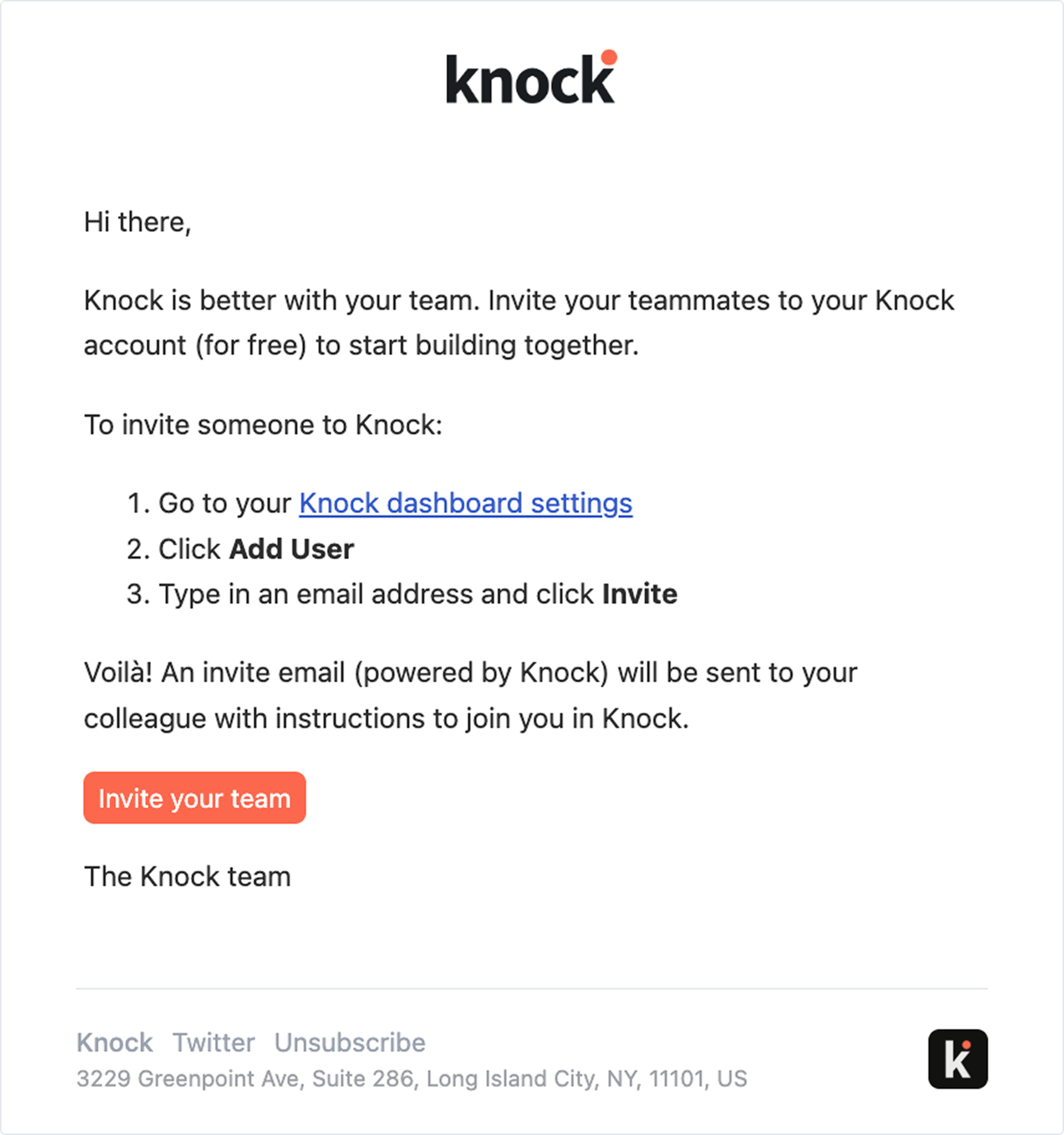
Email 5: Explore more of Knock
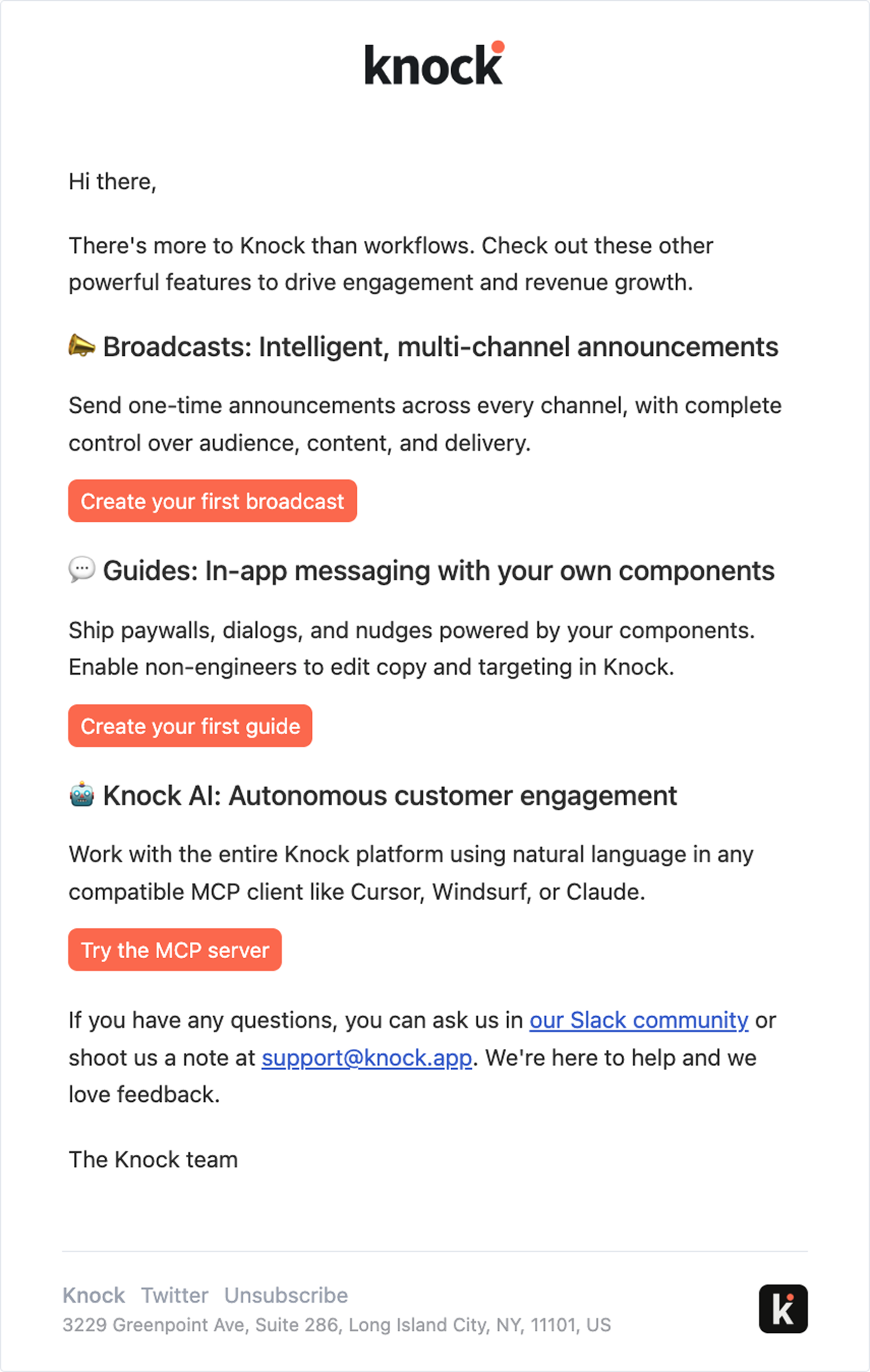
While the first three emails are very focused on Knock’s workflow engine, the fifth and final email serves the important purpose of bringing awareness to Knock’s other product offerings. Our Broadcasts and Guides products enable different use cases and deepen overall product engagement, so this email is important to increase platform adoption.
Of course, if these new users have already tried these products out, we want to avoid the unnecessary messaging. Which is why we include a condition on this branch to check tenant.broadcast_count and tenant.guide_count. If either are equal to or greater than 1, it’s clear this email will be noisy rather than helpful, and we’ll skip sending.
If they haven’t tried these products yet, they’ll receive this email:
So that we don’t overwhelm new users, we decided to wrap up our onboarding series on Email #5. If a user has received all five emails and still hasn’t completed these key onboarding steps, it’s unlikely they had an immediate need for Knock, and we’re better off saving them (and ourselves) from unwanted messaging.
Step 4: Adding intelligent delays and send windows
To get this workflow ready to start sending, we added a few other small touches to ensure our messaging is delivered with a seamless user experience.
As trivial as it may seem, poor timing is often the cause of onboarding fails. Sending the right message at the wrong moment is still noise.
This workflow uses a couple layers of timing logic to stay out of the user’s way and intervene only when most likely to be useful:
- Intelligent delays. Set delays based on fixed intervals, dynamic period, relative timestamps, or repeating window rules. You can check a delay on a certain frequency (e.g. weekly) and only release the message once conditions are met — for example, waiting until Monday at 9am in the recipient’s timezone before delivery.
- Timezone-aware send windows. Sending these emails during each user’s local business hours increases the chance the message is seen and acted on rather than ignored.
The result is confidence that our automated onboarding emails will adapt to each user’s schedule to maximize engagement.
Early results (and what’s next)
While it’s still early, the structure of this onboarding workflow is already changing how we think about activation. Instead of pushing a fixed sequence, we’re now reacting to real user behavior—nudging the user with helpful information when they stall, and staying silent when they’re figuring it out on their own.
The next phase is measurement. We’ll be instrumenting each step to understand where users stall, which messages accelerate first value, and where email is unnecessary or actively harmful. That means tying onboarding emails directly to in-product events, not vanity metrics like opens or clicks.
From there, the workflow becomes a system, not a campaign: tighter conditions, shorter paths for fast movers, and more targeted help for users who struggle. Instead of more emails, the goal is fewer, better-timed interventions that compound product adoption over time.
Implementation tips
If you're building something similar to what we built, here are our key recommendations:
Start with behavioral segmentation. Map out what different user segments need at each stage. The more specific your segments, the more relevant your emails.
Assume most emails are unnecessary by default. Start from the position that the product should do the onboarding. Email is a fallback for when the product fails to teach, not the primary driver of activation.
Test your timing. We found 48 hours was the sweet spot for identifying inactive users, but that may differ from company to company. Generally, too early and you miss natural exploration time, too late and they've already churned mentally.
Get the basics right. Make sure delays and send windows are set up correctly. Respecting timezones and avoiding sending during off-hours will improve engagement and activation.
Send dynamic onboarding emails with Knock
Building behavior-based onboarding workflows like this is straightforward with Knock. Our workflow engine handles the complex orchestration logic so you can focus on crafting the right message for each user segment.
You can explore our workflow templates or sign up for free to build your own dynamic onboarding sequence. The same infrastructure that powers our onboarding also handles transactional product emails, upgrade nudges, NPS surveys, and more—all from a single platform.