Today we're shipping custom roles and permissions. You can now create roles with granular permissions so each member of your Knock account has access that matches their job role.
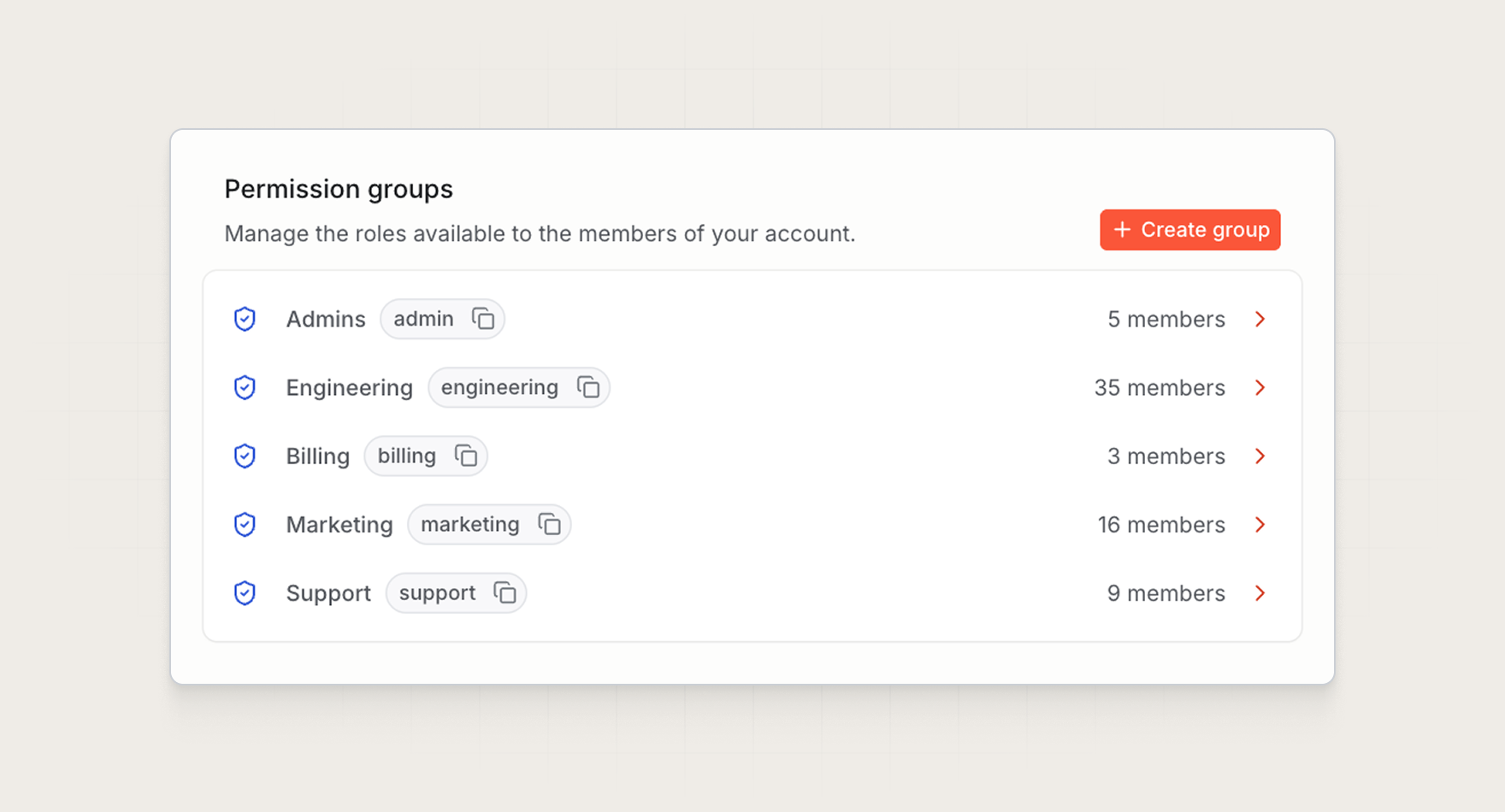
Set role-based permissions
As more of your organization uses Knock, different users need access to different tools and resources.
Custom permission groups give admins control over what users can view and manage in Knock, so each teammate only gets the access their role requires. This means you can bring more of your team into Knock without giving everyone access to your full account.
For example, you might manage permissions by team:
- Engineering. Ensure only admins and engineers have access to edit critical product communications.
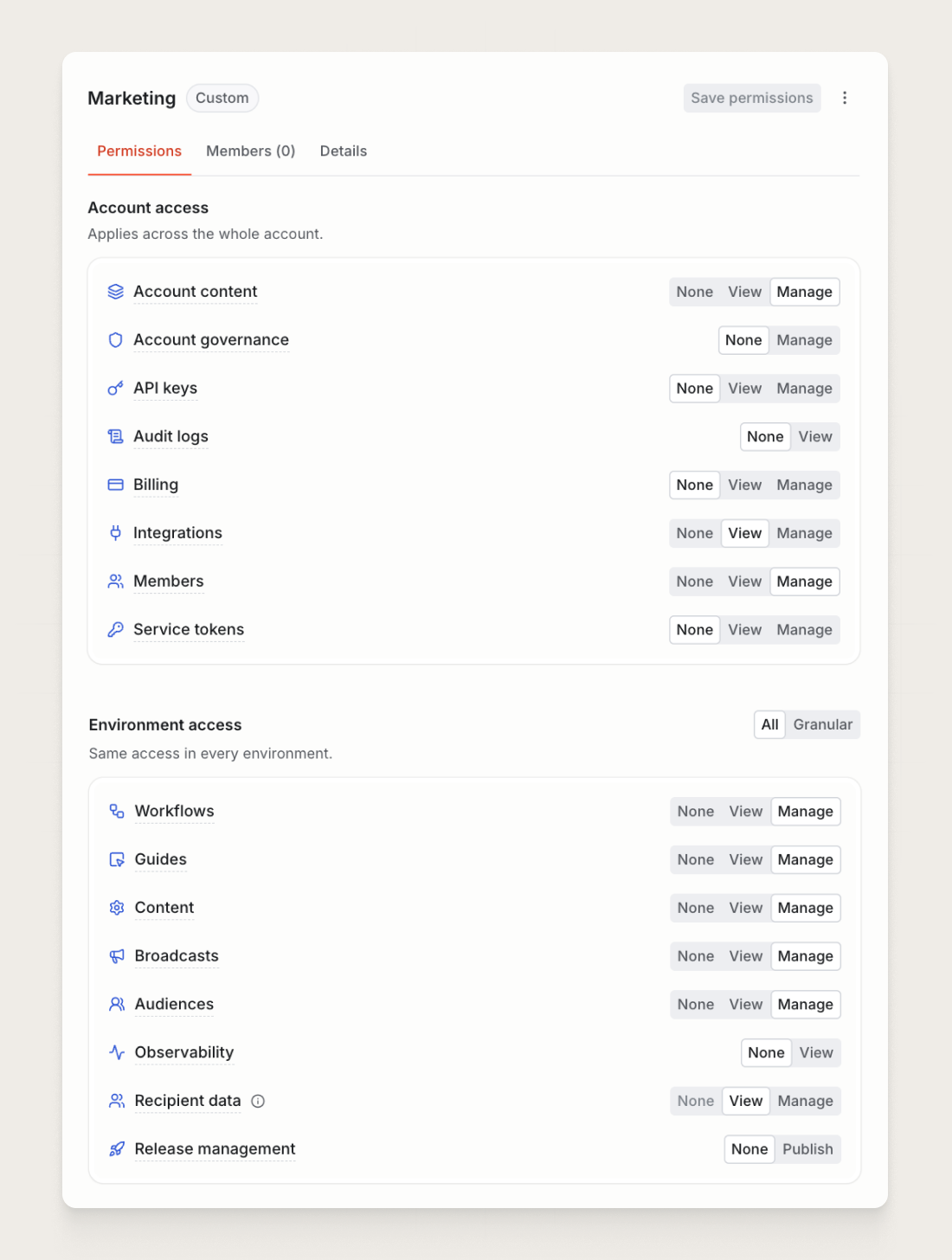
- Marketing. Enable marketers to edit workflows, templates, and guides without giving them access to API keys or other developer settings.
- Support. Allow the support team to look up users and message logs to debug delivery, without being able to edit messaging workflows.
- Agencies + contractors. Share access to the templates they need to work on, without opening the rest of your account.
Account + environment-level access
Each permission group includes account and environment-level permissions:
- Account access. Update account permissions to limit visibility of members, billing, integrations, and API keys.
- Environment access. Update environment permissions to limit access to resources like workflows, content, audiences, recipient data, and more by environment.
This means you can give a custom permission group the same access in every environment, different access in each one, or no access to an environment, including its branches.
Leverage environment-level permissions when built-in roles are too broad. For example, you can give engineers full access in development, but keep production observability hidden for compliance. Or enable marketers to manage workflows in production without access to development.
Get started
Custom roles and permissions are available today for Knock customers on the Enterprise plan. Manage your permission groups from Settings > Permissions, or read more in our documentation.
If you're not on the Enterprise plan, contact our sales team to learn more.